

Capabilities
- Sync user identities from Snowflake to ConductorOne
-
Resources supported:
- Roles
Add a new Snowflake connector
1
In ConductorOne, navigate to Admin > Connectors and click Add connector.
2
Search for Snowflake and click Add.
3
Choose how to set up the new Snowflake connector:
- Add the connector to a currently unmanaged app (select from the list of apps that were discovered in your identity, SSO, or federation provider that aren’t yet managed with ConductorOne)
- Add the connector to a managed app (select from the list of existing managed apps)
- Create a new managed app
4
Set the owner for this connector. You can manage the connector yourself, or choose someone else from the list of ConductorOne users. Setting multiple owners is allowed.
5
Click Next.
Next steps
- If you are the connector owner, proceed to Configure your Snowflake connector for instructions on integrating Snowflake with ConductorOne.
- If someone else is the connector owner, ConductorOne will notify them by email that their help is needed to complete the setup process.
Configure your Snowflake connector
Step 1: Locate the Snowflake Locator for your account
1
In Snowflake, click Organization.
2
Locate the account you wish to connect to ConductorOne in the accounts list.
3
Hover over the value in the LOCATOR column, and click the copy function. We’ll use this in Step 2.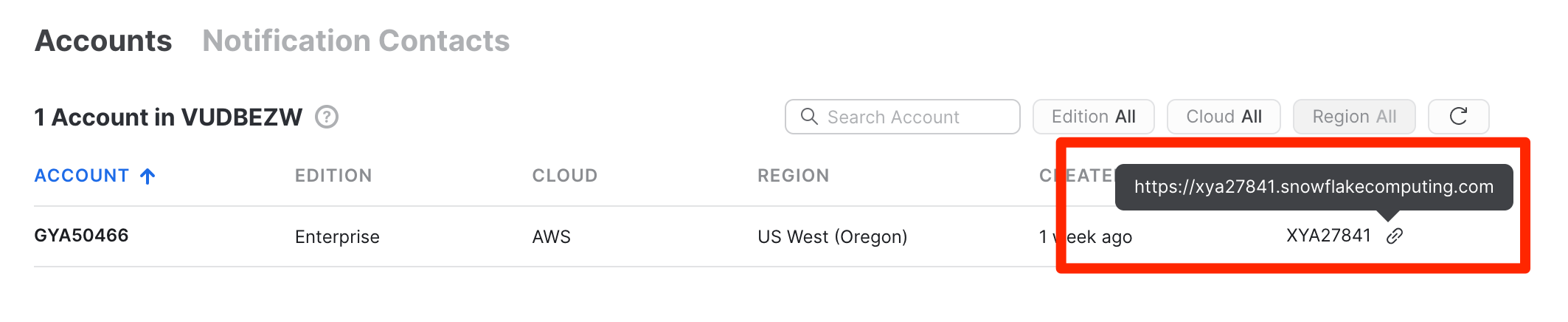
Step 2: Add your Snowflake credentials to ConductorOne
1
In ConductorOne, navigate to the Snowflake connector by either:
- Clicking the Set up connector link in the email you received about configuring the connector.
- Navigate to Connectors > Snowflake (if there is more than one Snowflake listed, click the one with your name listed as owner and the status Not connected).
2
Find the Settings area of the page and click Edit.
3
In the Account ID / Locator field, enter the locator you looked up in Step 1.
4
In the Username field, enter your Snowflake account username.
5
In the Password field, enter your Snowflake account password.
6
Click Save.
7
The connector’s label changes to Syncing, followed by Connected. You can view the logs to ensure that information is syncing.
Step 3: Choose a role in Snowflake
1
In Snowflake, go to User roles and click Edit.
2
Select a user role. A role that’s equivalent to SECURITYADMIN is required.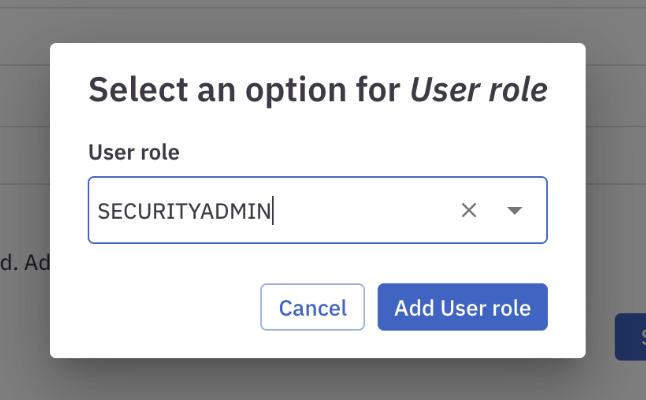
3
Click Add User role.
4
Click Save.
5
Return to ConductorOne. After you see the Connector updated message, click on View logs to verify that the connector syncs successfully.